
Set up what can be reserved and take a reservation
Add your tables, rooms, halls or equipment once. Then reserve one for a guest in a few taps. Bizic only shows free times, so nothing is ever booked twice.
Before you start
Reservations is a feature you switch on in Settings, under Features. It's offered to restaurants, guesthouses, event spaces and services. Once it's on, Reservations shows in the menu.
Add what can be reserved
Do this once for each table, room, hall or piece of equipment.
Open More and tap Reservations. Tap Set up, then Add.
Give it a name people will recognise, like "Garden table" or "Room 2", and pick what it is: Room, Venue, Equipment, Vehicle, Person or Table.
Adding "Garden table" as a table Choose when it can be reserved. Tick the days and set the hours, or switch on Always open. Different hours on Saturday? Tap Different hours on some days.
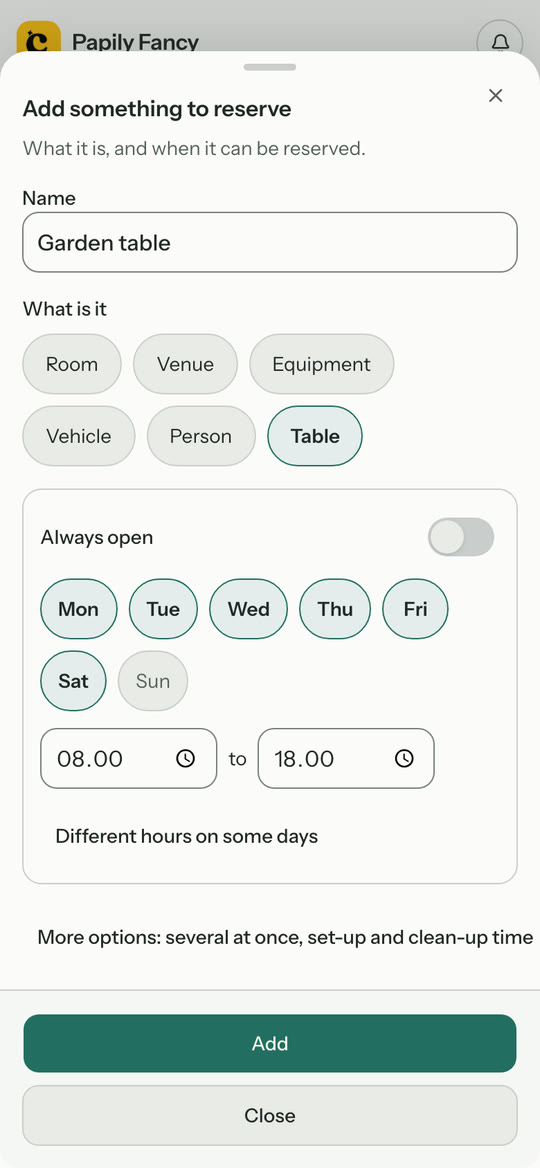
Name, kind, and opening days and hours Tap Add. It now shows under What can be reserved.
Reserve it for a guest
Go back to the Reservations tab and tap Reserve.
Under What, tap the table or room. Pick the Day and How long. Bizic shows the Free start times: tap one.
Under Who is it for?, type the guest's name and anything useful, like "Mary Ndi, 4 people".
Choosing the table, a free time and the guest Tap Reserve. That's it: it shows on the day, marked Confirmed.
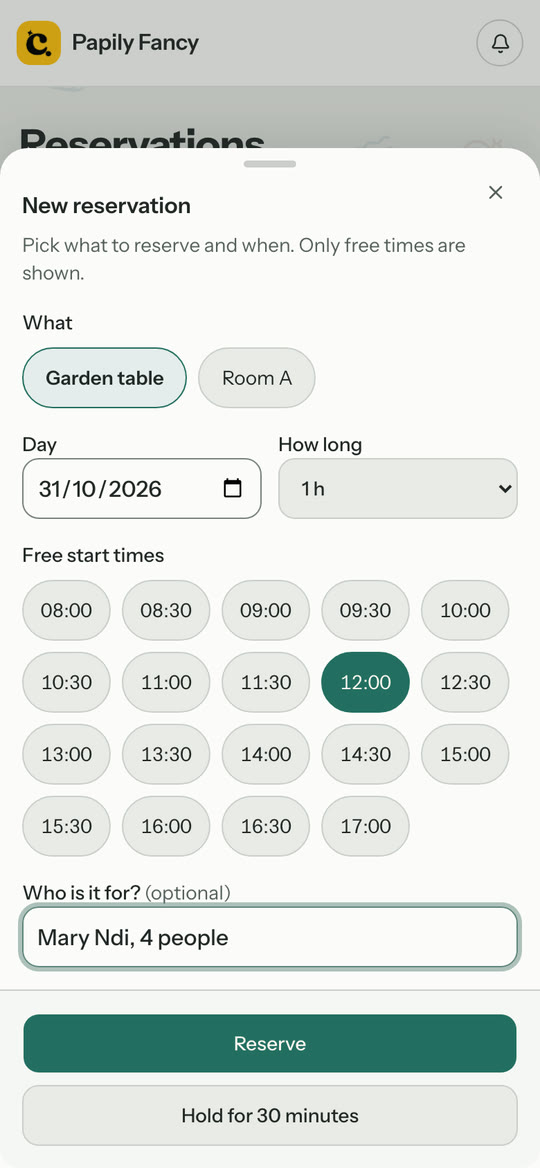
12:00 to 13:00, ready to reserve
On the day
Tap the reservation to open it. You'll see what was reserved and its history.
When the guest arrives, tap Arrived, start. When they leave, tap Finish, and the table or room is free again.
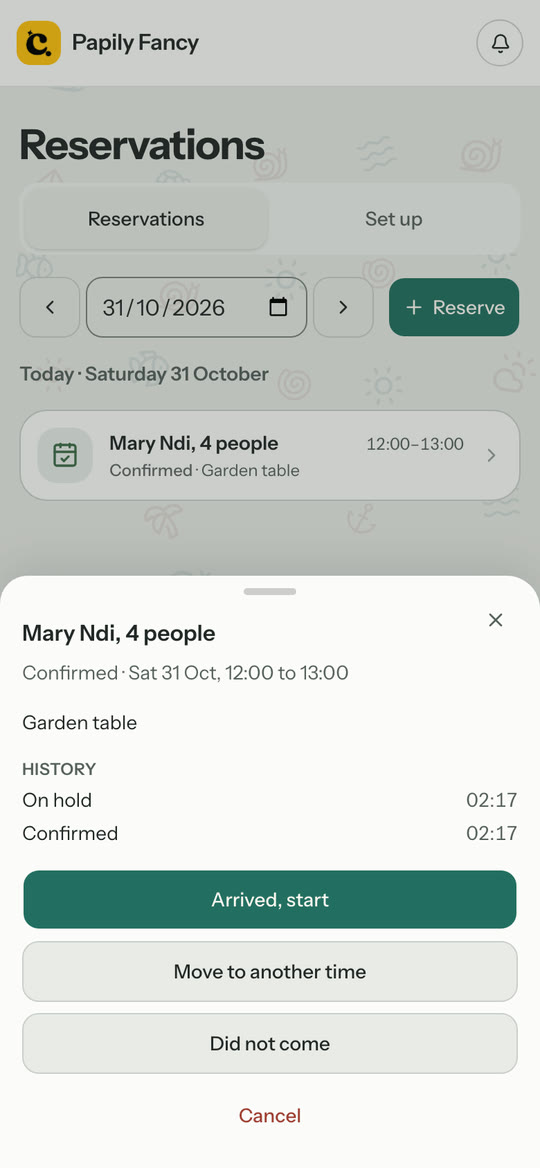
A reservation, with Arrived, Move and Did not come
Guest running late or changing plans? Tap Move to another time.
Guest never came? Tap Did not come. The time is freed, and you can see later who didn't turn up.
Called to cancel? Tap Cancel at the bottom.
Last change, 31 October 2026: First version, with clips of a table being added and reserved.
Still stuck?
Tell us what you were trying to do. A real person reads every message.