
Bring all your products in from a spreadsheet
Already keep your stock in Excel, a notebook or a printed list? Bizic reads it, shows you what it understood, and adds everything at once, with prices and counts for each shop.
Before you start
Have your list ready on your phone or computer. Bizic reads Excel, CSV, PDF, or even a photo of a printed page, up to 15 MB. Your headings don't need to match ours: "Item", "Qty" or "Selling price FCFA" all work.
The best lists have one row for each colour and size, with:
the product's name, and its colour and size if it has them
what you sell it for, and what you paid for it
how many you have
your own code for it, if you label your products
Bring the list in
Open More, then tap Import.
Opening Import from the More menu Tap Choose a file and pick your list. Nothing is added to your business yet: you'll see everything before it goes in.
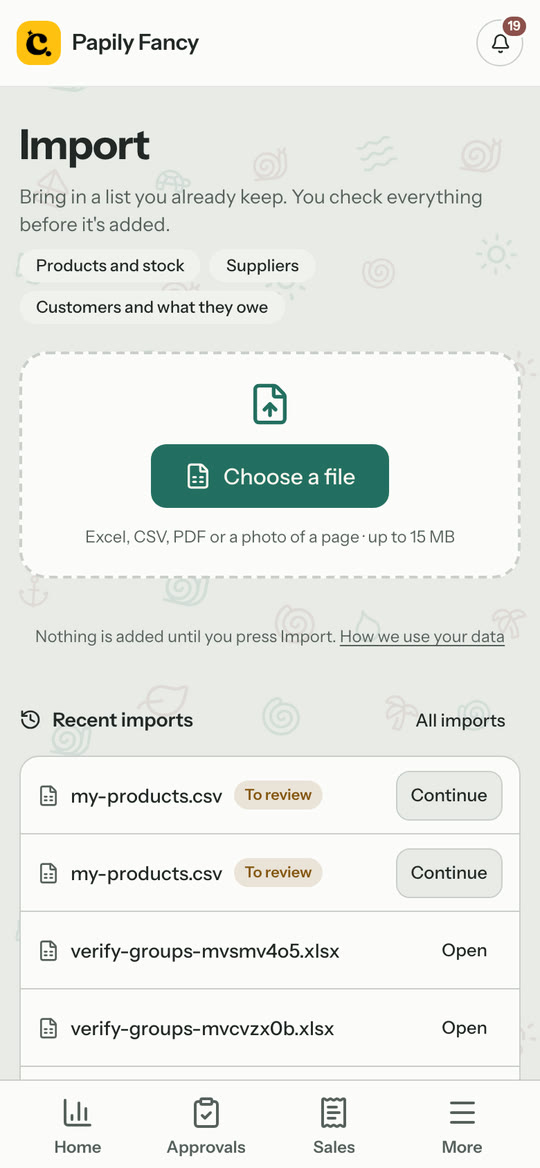
The Import page, with Choose a file Bizic shows Check what we read. Choose the shop the stock is in under Shop for the opening stock, and check that This list is says Products & opening stock.
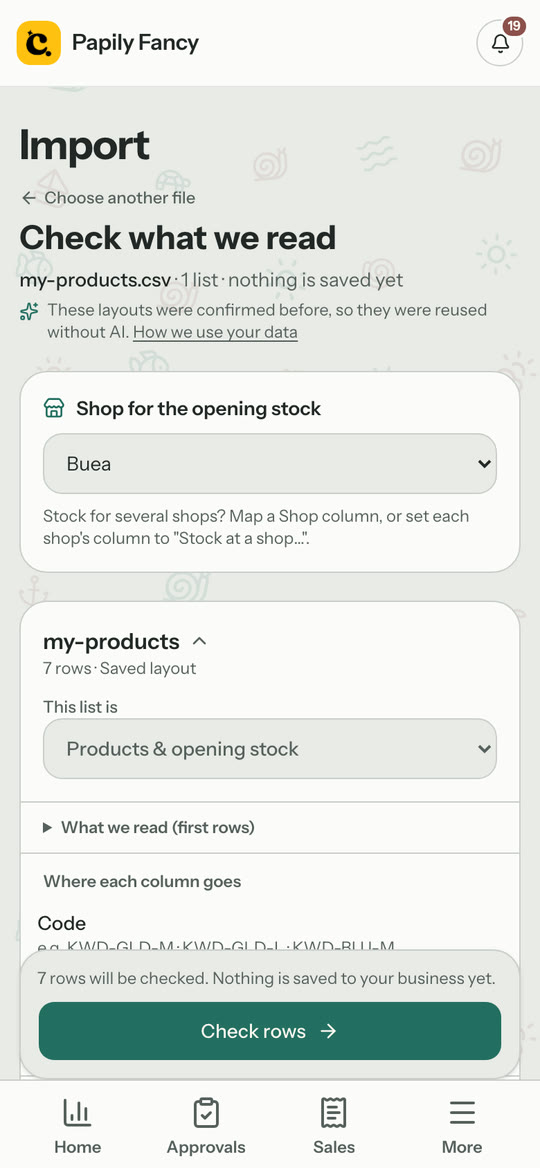
Check what we read: the shop and the kind of list Scroll down to Where each column goes. Each of your headings is matched to a Bizic field, with a few examples from your sheet underneath. If one is wrong, tap it and pick the right field. Choose Leave out for a column you don't need, like a total.
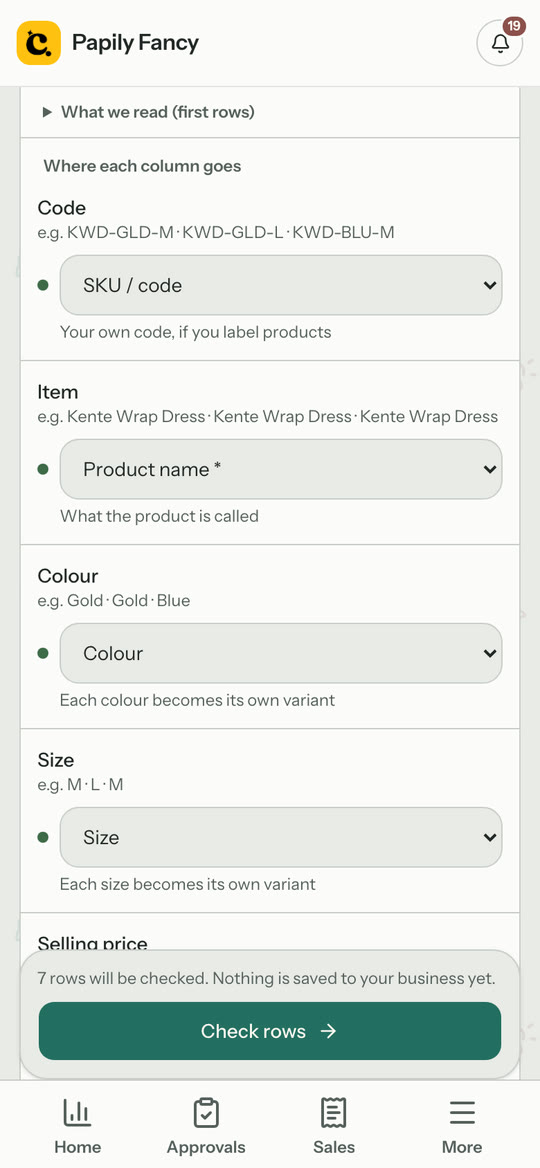
Each column from the sheet matched to a field Tap Check rows. Bizic counts what's Ready, what Needs a fix, and what's Already in Bizic.
Check rows, then the counts
Check and import
If any rows need a fix, open them and correct them, or skip them for now. Rows that are already in Bizic are left alone, so it's safe to bring in the same list twice.
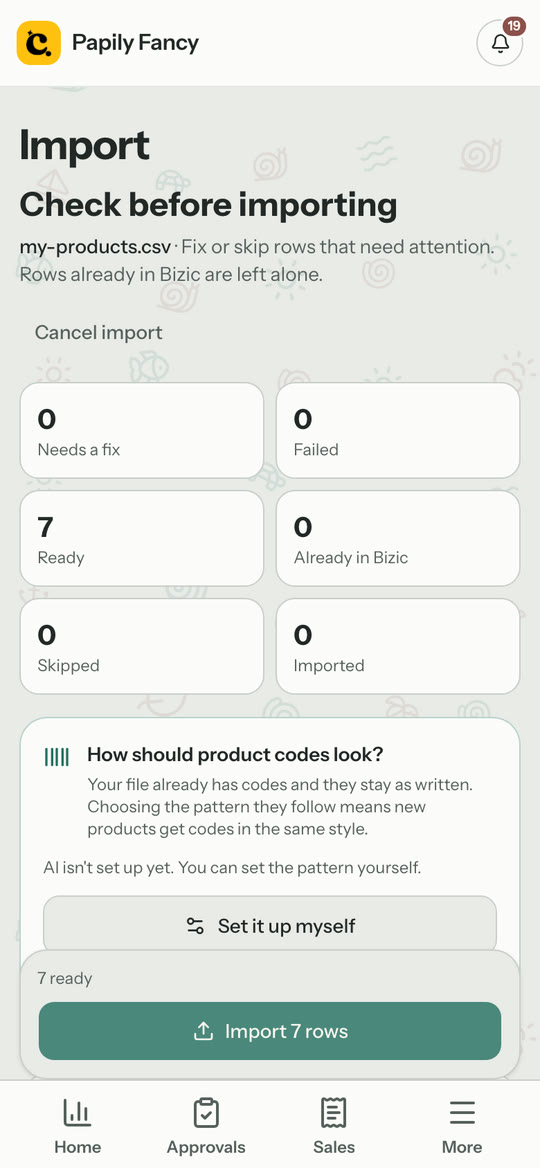
Check before importing: 7 rows ready Tap Import, followed by the number of rows. That's it: your products, prices and stock are in, and the till can sell them straight away.
Importing the rows
Past sales from a sheet
Kept a sales book or a spreadsheet before Bizic? Import it the same way. Bizic spots a sales sheet by its columns: the day sold, the product (its name, or its SKU), and how many. It also reads a receipt or invoice number, colour and size, the price each or the line total, paid by (cash, mobile money or bank) and the shop.
Rows with the same receipt number on the same day are one sale; a row without one is a sale on its own.
The price in your sheet is what's recorded. With no price, the product's price in Bizic is used.
Each sale counts on its own day, is marked added later in Sales history and shows in Money in and out. Today's drawer doesn't change.
Take these sales off stock (on the review screen, on to start with): on, each sale takes its products off stock like a sale at the till. Turn it off when your stock count already includes these sales: they're recorded and your stock stays as it is.
The products and shops must already be in Bizic. A row Bizic can't match says why, so you can fix the name or skip the row. A receipt is saved whole: if one of its rows needs fixing, none of it is saved until you fix or skip that row.
Last change, 18 November 2026: New section: import past sales from a sheet.
Still stuck?
Tell us what you were trying to do. A real person reads every message.