
Handle an online order
Orders from your online shop land in one list. Take each one step by step, and the customer gets a message every time, so they never have to call and ask.
Find new orders
When a customer orders from your online shop, Bizic tells you on Home (online orders to handle) and with a notification.
Open More, tap Orders, then Online. Three tabs keep it tidy: - To do: orders you still need to act on - Deliveries: orders going out to customers - Done: finished or cancelled
Opening online orders 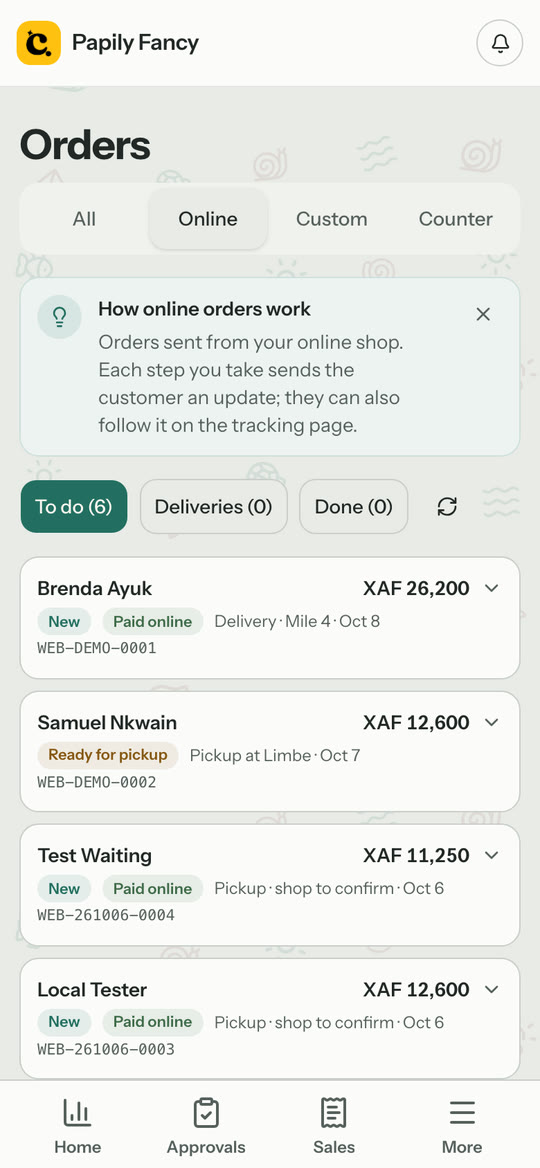
The To do list
Each order shows the customer, the total, its step (New, Confirmed…), pickup or delivery, and Paid online if they already paid.
Take it step by step
Tap an order to open it. You see what they ordered, how they want it (pickup or delivery, with the area and a landmark) and their number.
Opening an order 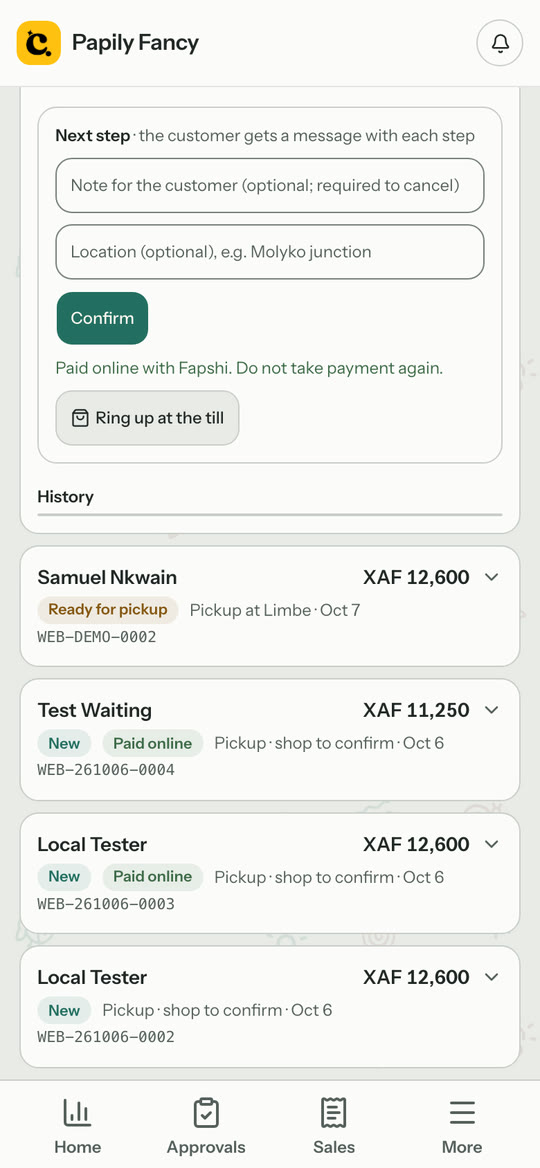
An order, with its next step Under Next step, tap what happens next. Every tap sends the customer a message: - Confirm: you have it and you'll prepare it - Ready for pickup or Out for delivery - Delivered, then Complete Add a Note for the customer or a Location (like "Molyko junction") first if it helps.
Confirming the order Not paid online? When they pay, tap Ring up at the till. The order opens at the till with everything in it, so the sale and the stock are right.
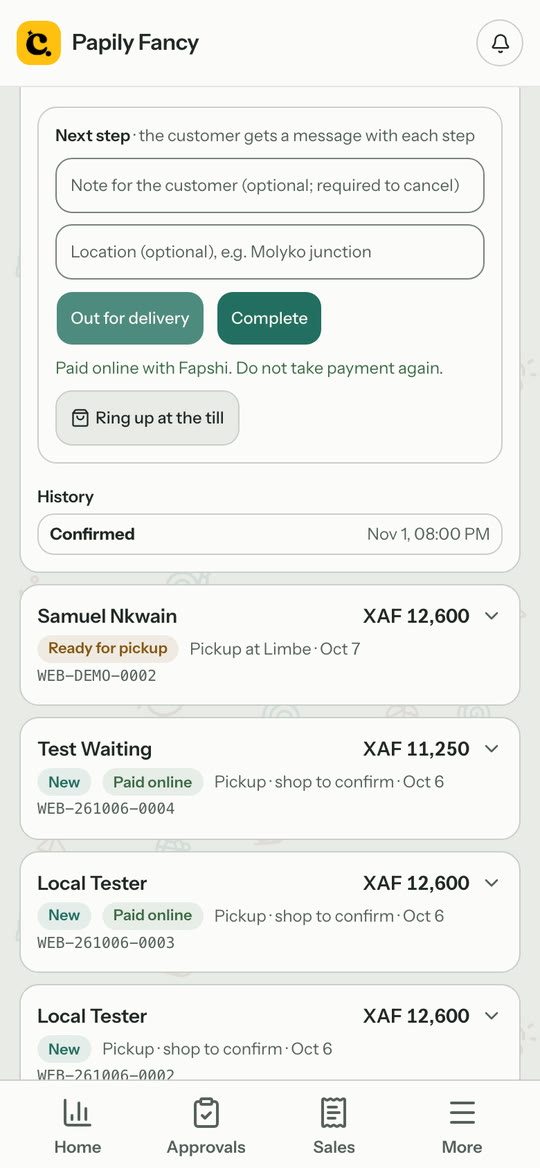
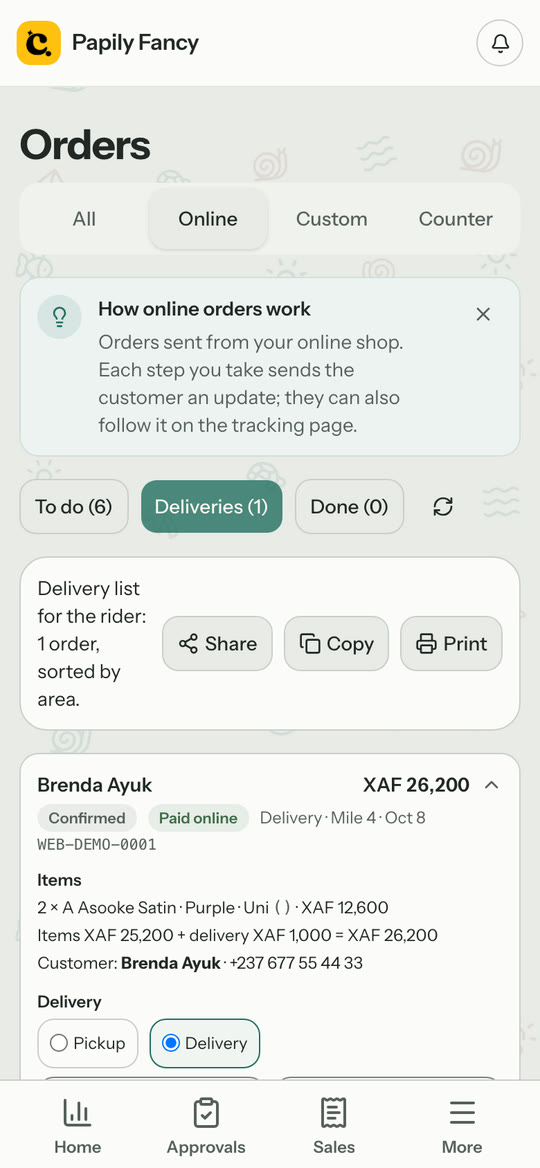
Deliveries for the rider
Deliveries lists every order going out, sorted by area. Tap Share, Copy or Print to hand the rider one list.
Last change, 1 November 2026: First version, with clips of an order being confirmed.
Still stuck?
Tell us what you were trying to do. A real person reads every message.