
Open your online shop
Your products, with photos and prices, on a page customers open from a link. They order and pay on their phone, and the order lands in Bizic.
On this page
Before you start
Switch on Online shop in Settings → Features (turn features on). It needs Customer messages too, so orders and questions reach you.
Set it up
Open More and tap Online shop. The top says whether it's Published or Not published (only you can see it). Open storefront shows it the way customers do.
Opening the online shop settings 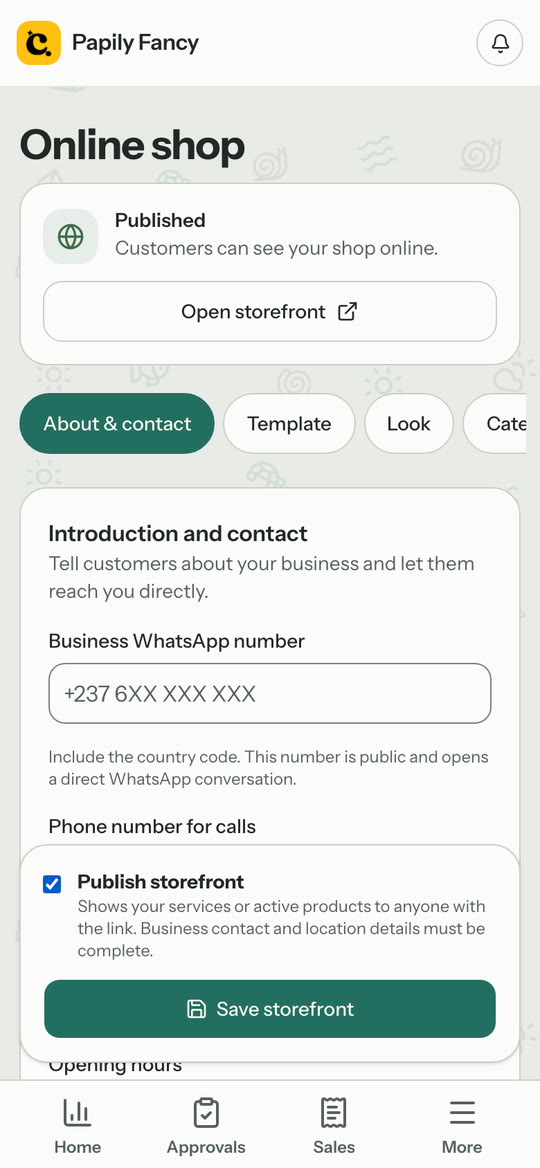
Published or not, at the top One part at a time, with the pills along the top: - About & contact: a few words about your shop, your WhatsApp number (customers tap it to message you), opening hours, and your shops' addresses - Template: how the page is laid out, and its colours - Look: your logo, a welcome picture and headline - Categories: which categories to show first - Link: your shop's web address, to copy and share - Product photos: the photos and descriptions of your products
Moving between the parts Under Link, copy Your link and share it on WhatsApp, Instagram or a flyer. Want a shorter name? Type it under Your shop name and tap Save address.
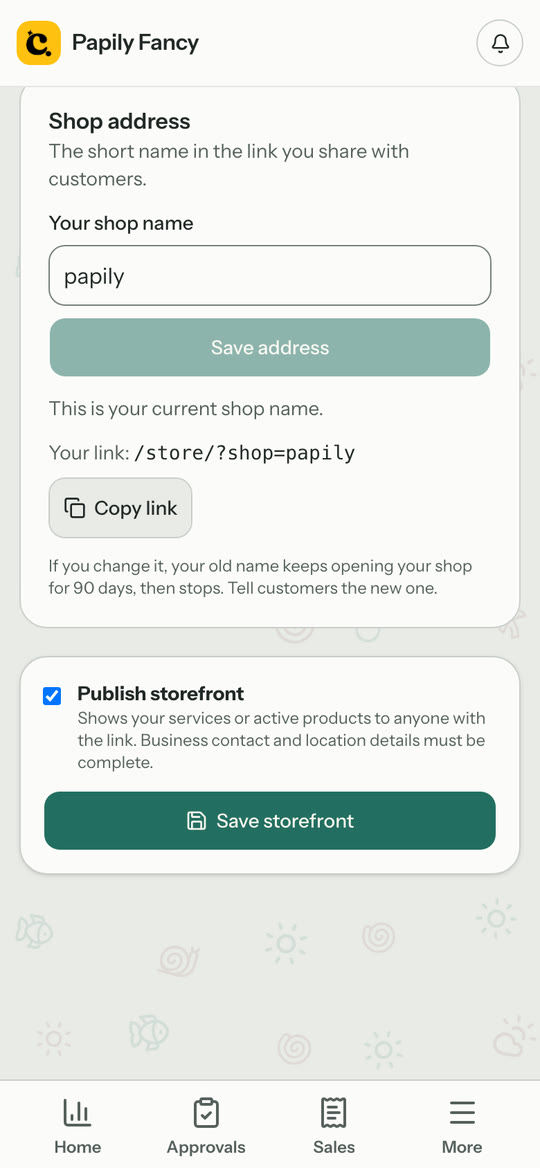
Your shop's link At the bottom, tick Publish storefront and tap Save storefront.
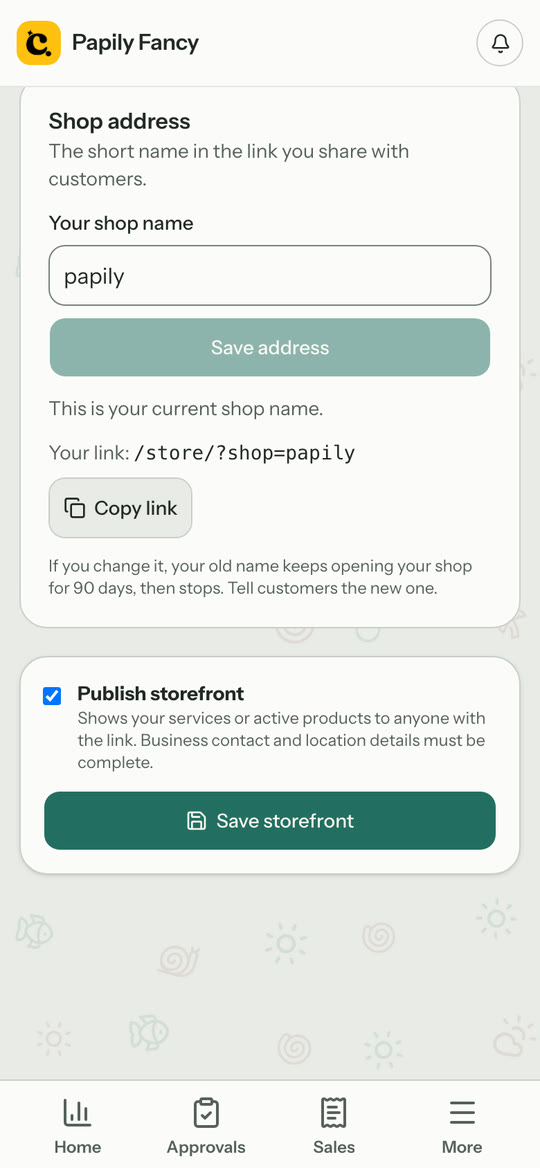
Publishing the shop
What customers see
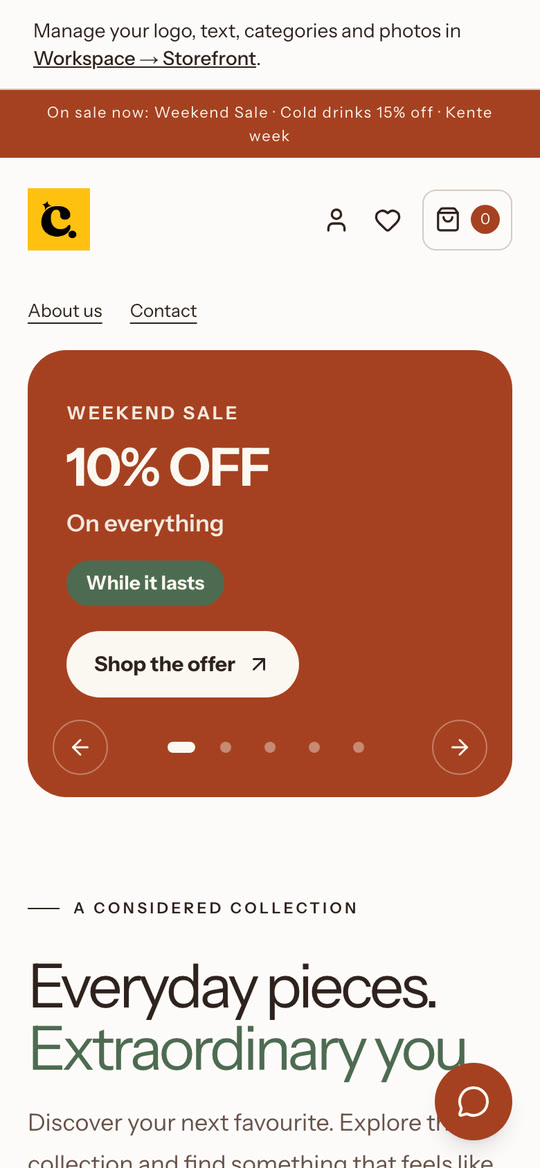
Your products with photos, prices and the colours and sizes in stock, sorted by category. They add to their basket, choose pickup or delivery, and pay by mobile money or when they collect. Then handle the order.
Last change, 1 November 2026: First version, a tour of the online shop settings.
Still stuck?
Tell us what you were trying to do. A real person reads every message.