
Take a made-to-order job with a deposit
A dress to sew, a cake for Saturday, a sign to paint. Write down what they want, when it's due and the price, take a deposit, and follow it until they collect.
On this page
Before you start
Switch on Custom orders in Settings → Features (turn features on). Bakeries see it as Cake orders.
Take the order
Open More, tap Orders, then Custom. Orders are listed by when they're due, with how much is still to pay.
Opening custom orders 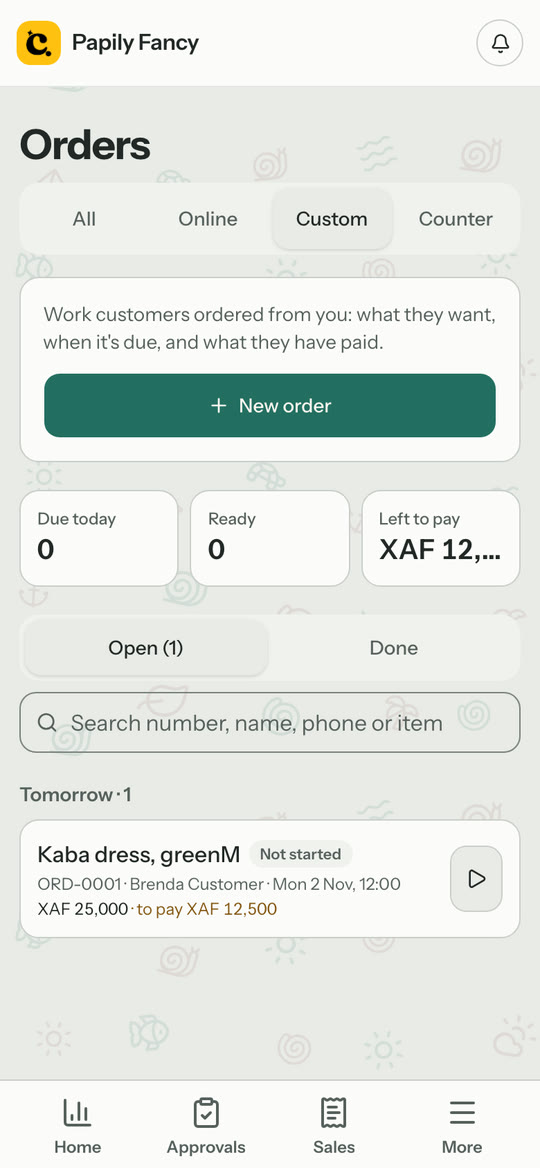
The order book Tap New order.
Under Customer, type their name and phone. The phone lets you send them a WhatsApp when it's ready, and lets them pay later.
Under What they ordered, describe it. Tap a detail like Size, Colour or Measurements to add it on its own line. Picked a customer you already know? Their saved sizes show under Saved for; tap Use these to fill them in.
Under When it's due, tap Today, Tomorrow, In 3 days or In a week, or pick a date. Set the time, then They collect it or We deliver it (with the address).
Type the Price. More than one thing? Tap Add a line.
Under Deposit taken now, type what they paid today, or tap Half or All of it. Then how they paid: Cash, Mobile money or Bank.
Taking an order for a green kaba with a half deposit 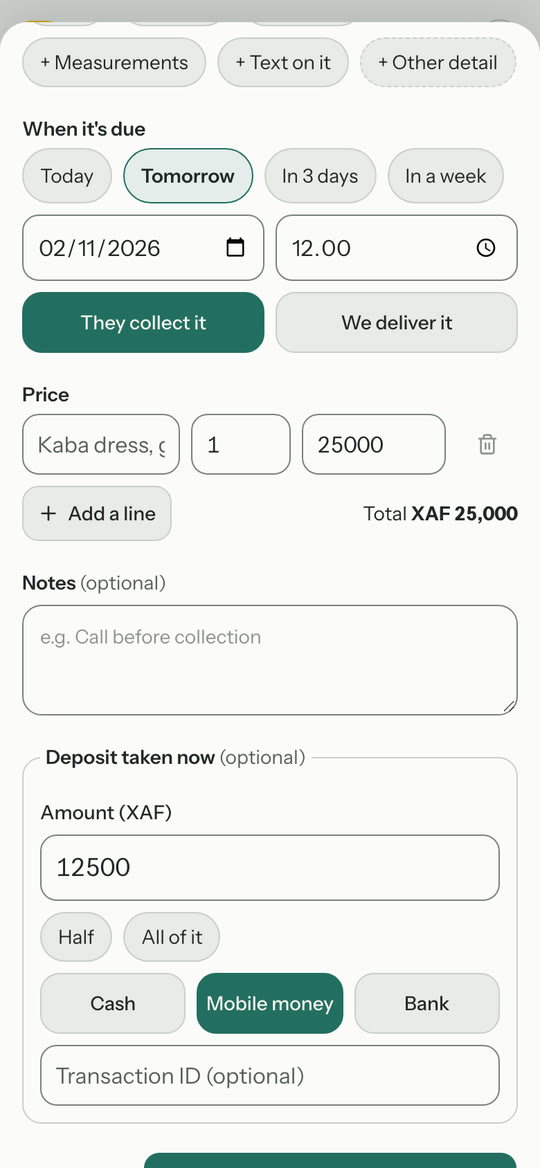
The order, ready to save Tap Save order. With a deposit, the button says how much was paid, like Save · XAF 12,500 paid.
Saving the order
Follow the work
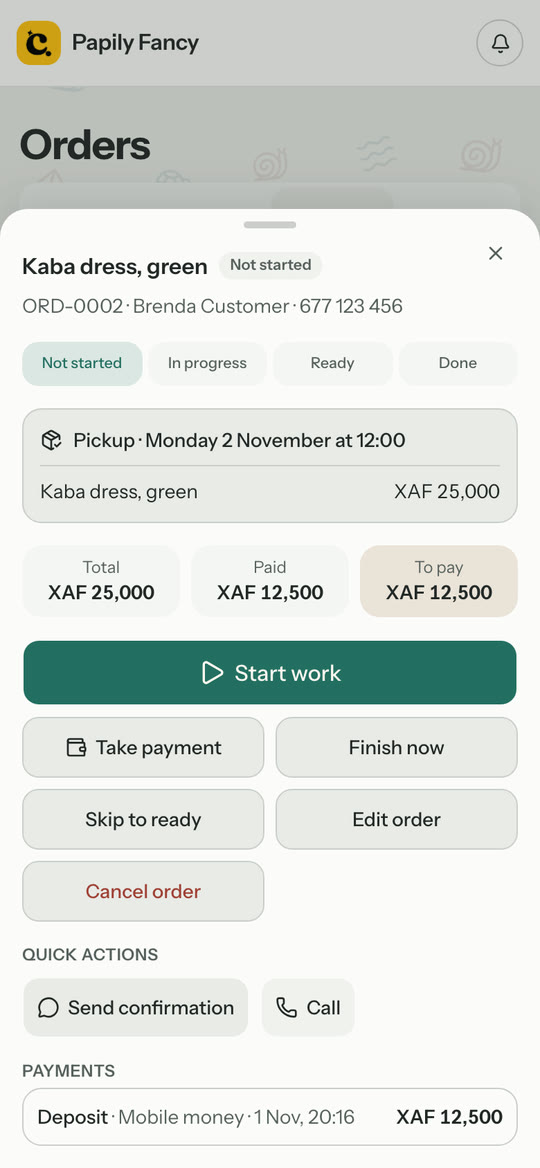
Open the order to move it along:
Start work when you begin
It's ready when it's done. Tap Tell them it's ready to send them a WhatsApp, or let Bizic send it by itself (see below).
Finish now when they collect it or it's delivered. Take payment for what's left, or Pay later if they'll pay another day; the rest then shows in who owes you.
Remember their sizes for next time
The order has measurements you'll need again? Open the order and tap Remember for followed by the customer's name, under the details. Bizic saves them on the customer, under Customers → Remembered, and offers them on their next order. Saving the same sizes twice does nothing new.
Tell customers by themselves when it's ready
An owner can switch this on once: Settings → Messaging channels, then Tell customers when their order is ready. From then on, tapping It's ready sends the customer a WhatsApp from your linked number, with the balance still to pay. Each order is only told once, even if you move it back and mark it ready again.
If nothing can be sent, Bizic says why straight away: no WhatsApp linked yet (link your WhatsApp), or no phone number on the order.
Last change, 4 November 2026: Sizes can be saved to the customer for next time, and the ready message can go out by itself.
Still stuck?
Tell us what you were trying to do. A real person reads every message.