Link your WhatsApp number
Link the WhatsApp number your customers already know. Their messages land in Messages, and receipts, quotes and order updates go out from it.
On this page
Two ways to connect
Open More, tap Settings, then Messaging channels. Under Connect a channel, WhatsApp offers two ways:
Use your existing WhatsApp: scan a QR code with the phone that has your shop's WhatsApp. Quick, and it keeps your number and chats. For one-to-one chats, orders, receipts and quotes. It can't send campaigns: it isn't Meta's official connection, so Meta may block a number used for bulk messages.
WhatsApp Business Platform: Meta's official connection. Needed for campaigns and message templates. Meta must verify your business first, which takes longer.
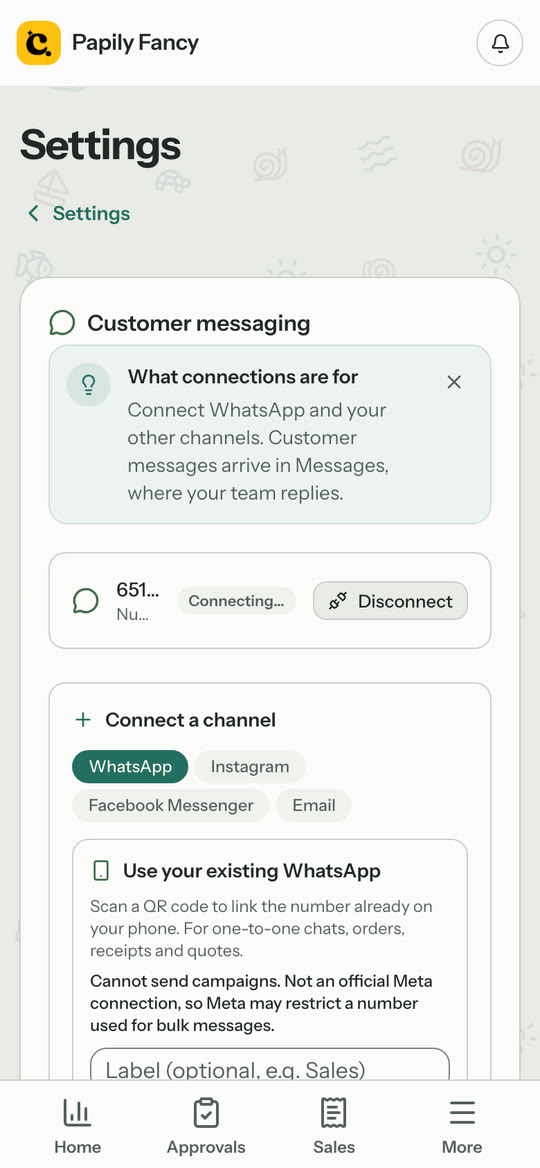
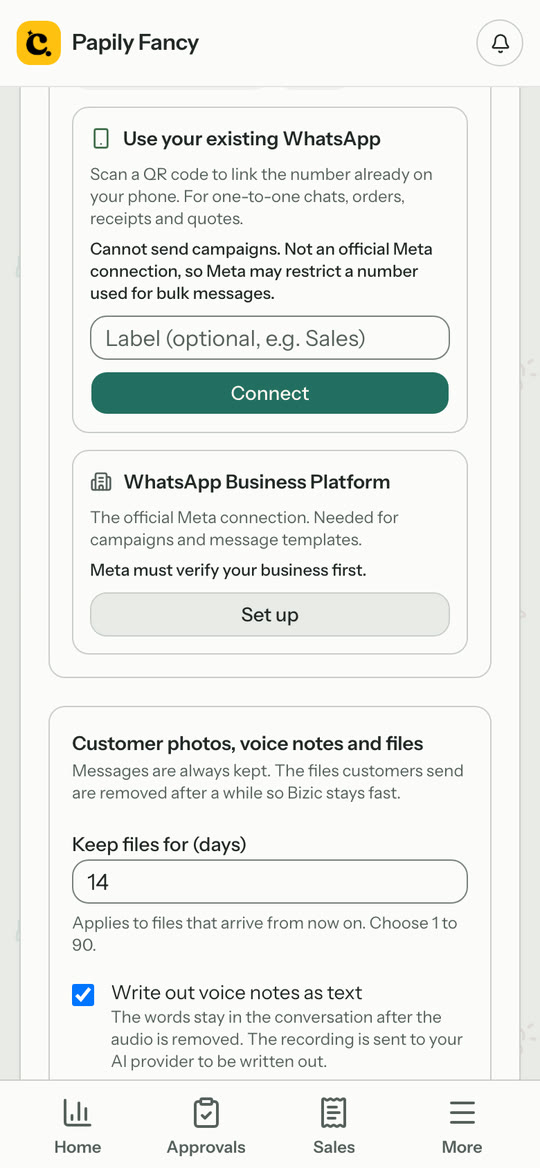
Most shops start with the first and add the Business Platform when they want to send campaigns.
Link your existing WhatsApp
Under Use your existing WhatsApp, give it a label if you like (like "Sales") and tap Connect. A QR code appears.
On the phone with your shop's WhatsApp, open WhatsApp → Settings → Linked devices → Link a device.
Point that phone at the QR code on the screen. Bizic says WhatsApp connected, and the number appears in the list.
From now on, customers' messages arrive in Messages, and anyone on your team can answer from your shop's number.
Last change, 1 November 2026: First version.
Still stuck?
Tell us what you were trying to do. A real person reads every message.