
Invite someone to your team
Give each person their own login and only the jobs they do. A cashier sells, a stock keeper counts, and nobody sees what they don't need.
Before you start
You need the person's email address. Each person needs their own: sharing one login means Bizic can't tell who sold what.
Send the invitation
Open More and tap Team, then Invite someone.
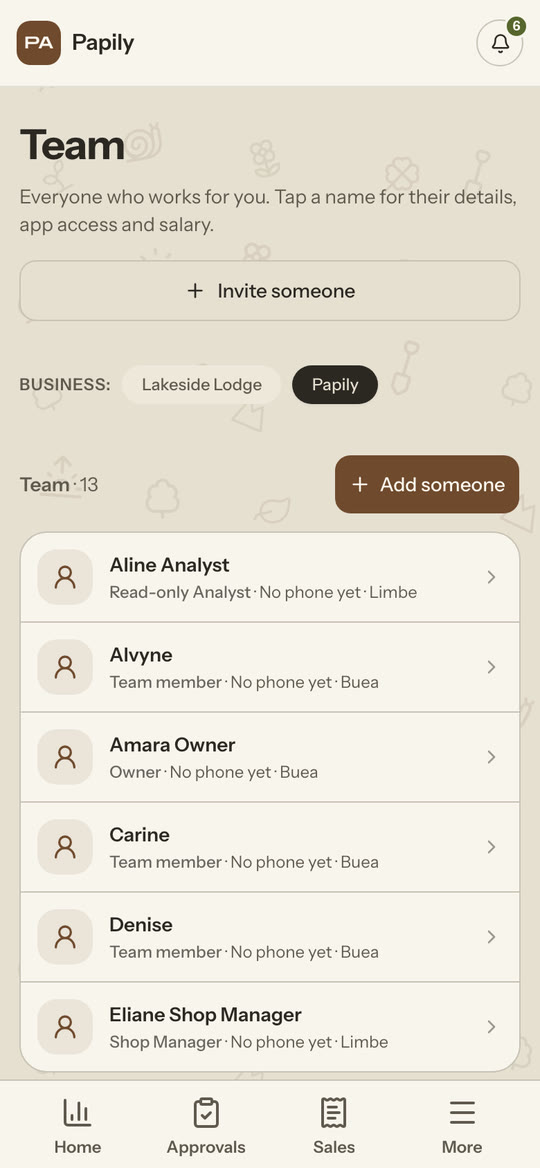
Team: everyone who works for you, and Invite someone at the top Type their Email address.
Choose their job. Each one says what it can do, for example: - Shop Manager: runs daily sales, receives deliveries and leads the shop team. Asks for stock, but doesn't buy or see cost prices. - Cashier: makes sales and takes payments. - Stockkeeper: receives products, counts stock and looks after it.
Typing the email and choosing Cashier Under Assigned shop, tap the shop they'll work in. Their sales, stock and drawer belong to that shop.
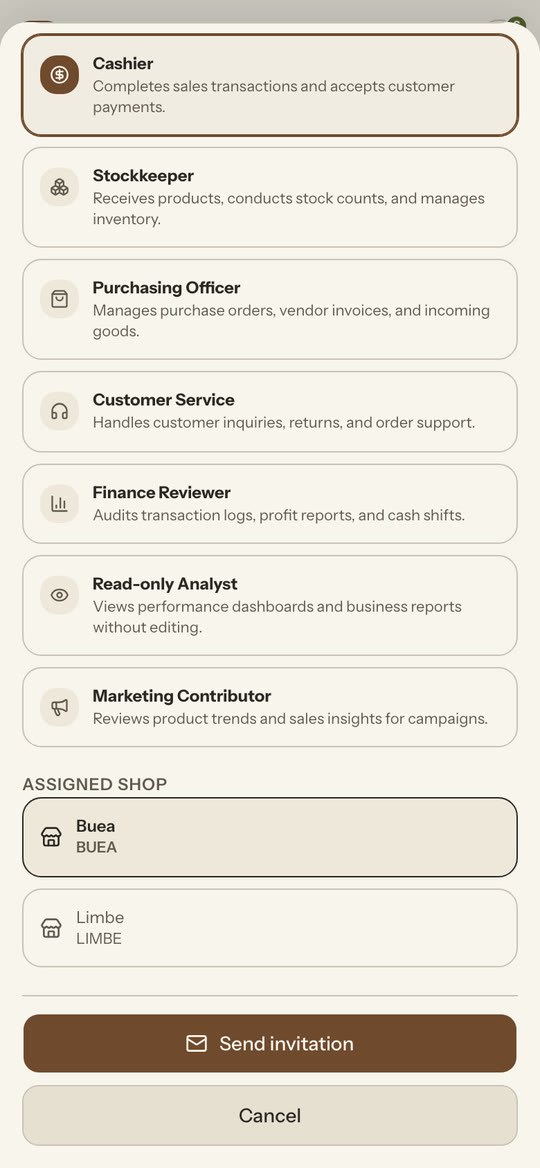
Choosing the shop Tap Send invitation. Bizic shows Invitation link ready.
Tap Copy invitation link and send it to them on WhatsApp or by text. The link works for 72 hours.
Sending the invitation and getting the link
That's it. When they open the link and sign in with that email address, they join your business with the job you chose. Even without the link, signing in with that email shows them Join with your business's name.
Change or stop someone's access
On Team, tap the person's name. Under App access, tap Change access to change their job or shop. Someone should not sign in any more? Tap Turn app access off: everything they did stays on record. If they left the business, also tap Mark as left (see Keep your team's details in one place).
Last change, 22 November 2026: Team is one list now: change or stop someone's access from their name.
Still stuck?
Tell us what you were trying to do. A real person reads every message.