Turn features on or off
Bizic only shows what you use. Switch on an online shop, bookings, promotions or your team's tasks when you need them, and off again any time. Nothing is deleted.
On this page
Find the switches
Open More and tap Settings. Settings is where your business details, team and locations, look and colours, and shop rules live.
Tap Features. Under What else do you need?, every extra has a switch, a line on what it's for, and Opens: with the pages it adds to your menu.
Opening Settings, then Features Tap a switch to turn that feature on or off. The pages it opens show up in your menu straight away, or disappear from it.
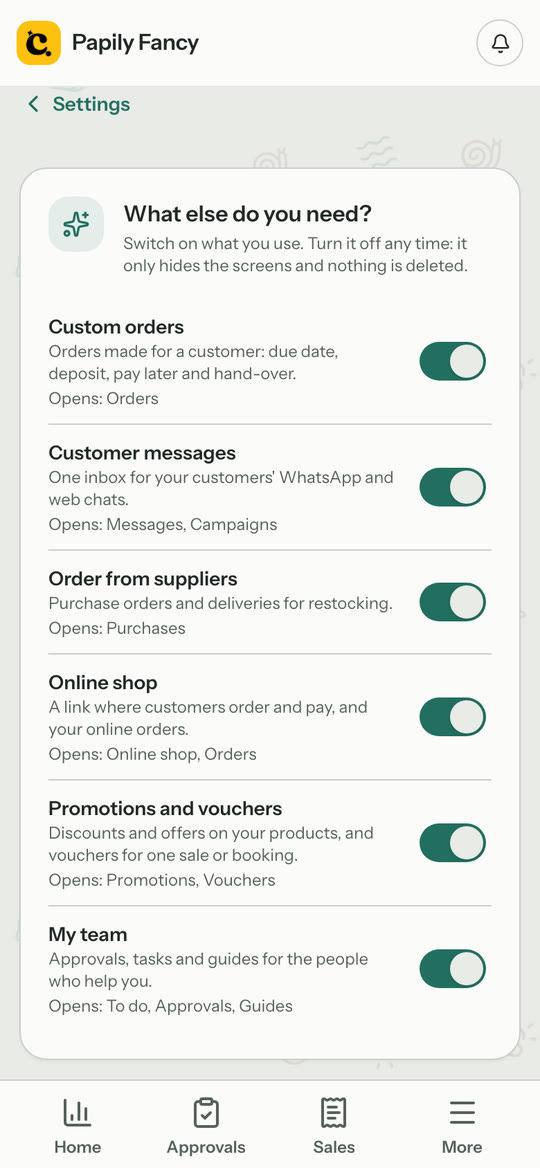
The switches, each saying what it opens
What you can switch on
Which ones you see depends on what your business does.
Custom orders: orders made for a customer, with a due date, deposit and hand-over. Opens Orders.
Customer messages: one inbox for WhatsApp and web chats. Opens Messages and Campaigns.
Order from suppliers: purchase orders and deliveries. Opens Purchases.
Online shop: a link where customers order and pay. Opens Online shop and Orders.
Promotions and vouchers: sales, deals and voucher codes. Opens Promotions and Vouchers.
My team: tasks, approvals and how-we-do-it guides for your staff. Opens To do, Approvals and Guides.
Bookings (for services): a calendar, your opening hours and online booking. Opens Calendar and Staff & hours.
Reservations (for services, restaurants, guesthouses and events): tables, rooms, halls or equipment, reserved by time. Opens Reservations.
Sell products (for services): a till and stock, for a salon that also sells products. Opens Products, Sell, Sales and My shift.
Last change, 1 November 2026: Fresh pictures; money now reads XAF.
Still stuck?
Tell us what you were trying to do. A real person reads every message.