
Approve or decline a booking request
When a customer books from your link, the time is held for them until you answer. Accept it, move it to a time that suits you, or decline it kindly.
On this page
See what's waiting
A booking from your link arrives as a request. Bizic tells you on Home, under booking requests to answer, and with a notification. Each one shows the day and time, the customer, the services and their number.
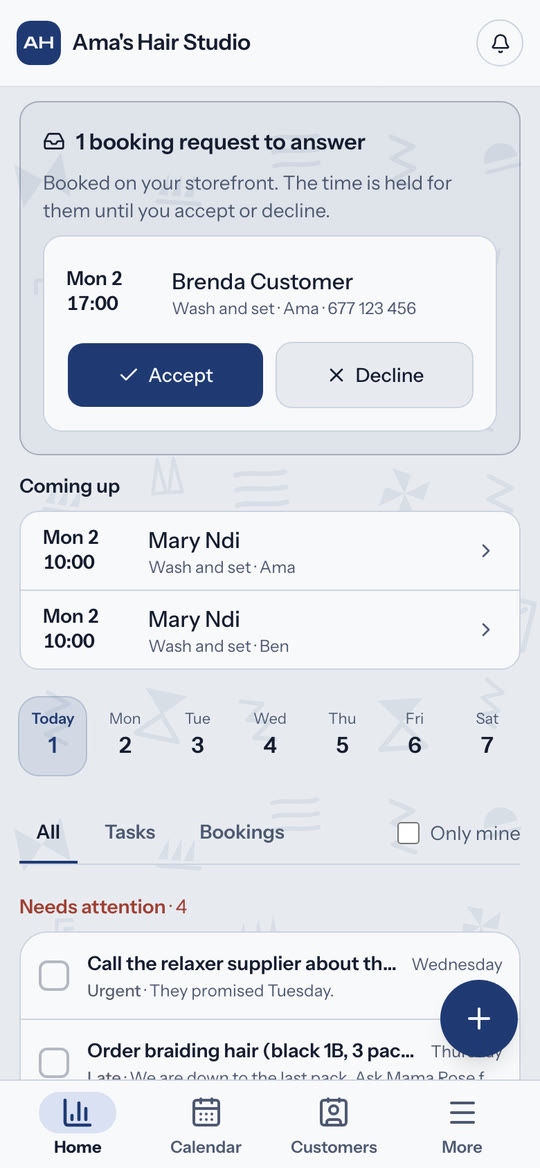
On a phone you can swipe a request right to Accept or left to Decline, or use the buttons under it.
Answer it
Tap the request to open it. You see what they asked for, how long it takes and the price, plus any note they left.
Opening the request 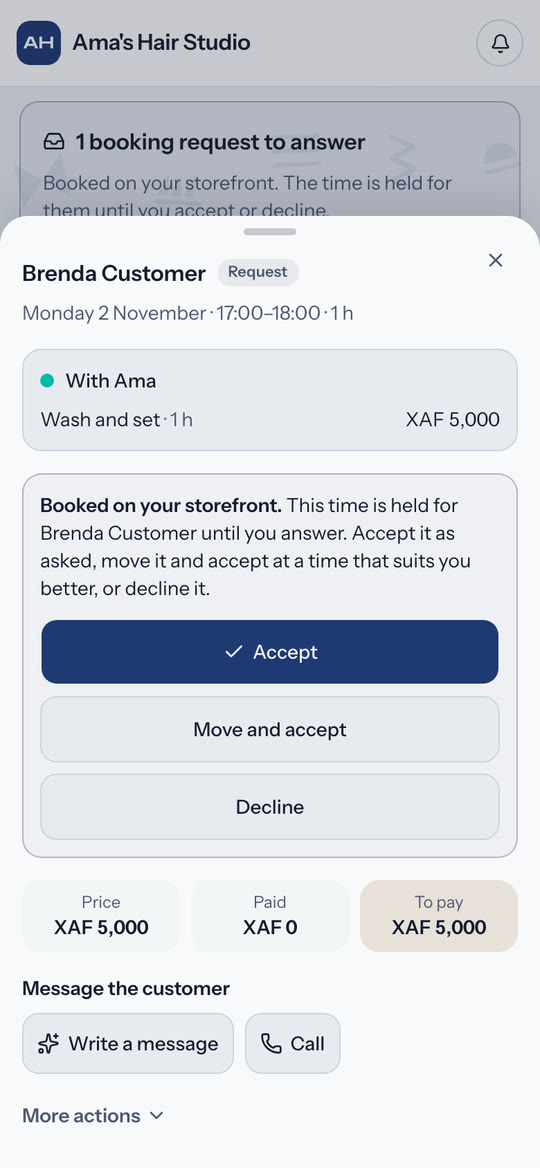
The request, with Accept, Move and accept, and Decline Choose one: - Accept: the booking is confirmed at that time. - Move and accept: pick another free time and accept it there. Handy when you'd rather start an hour later. - Decline: pick a reason (Fully booked, Closed that day…) and send the customer a kind message from the box under it. Then tap Decline request. The time is free again for other bookings.
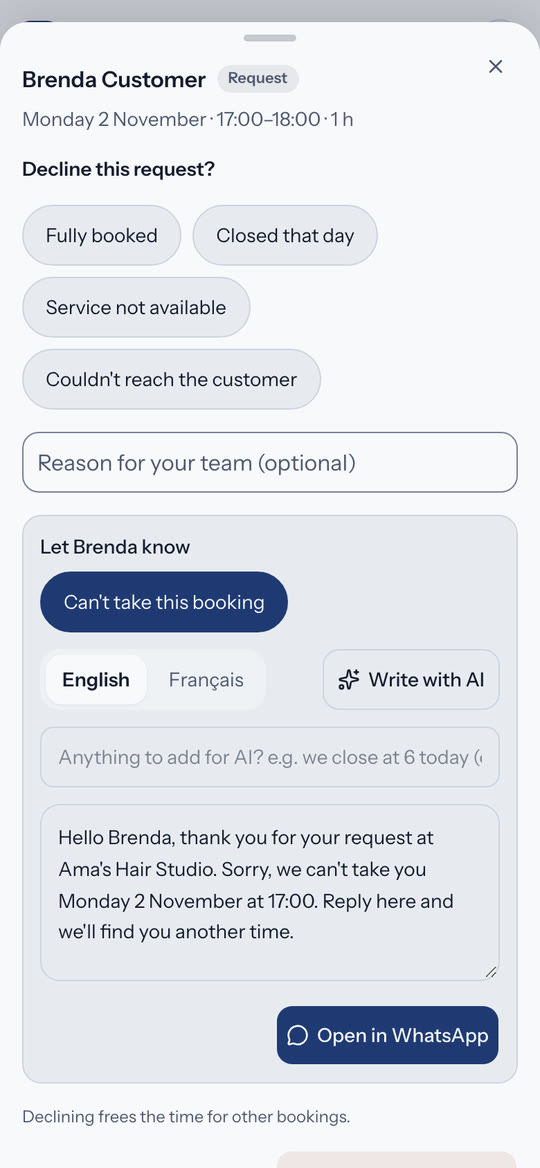
Declining: a reason, and a message for the customer After you accept, Bizic shows Booking accepted with a Tell them on WhatsApp button. Tap it to send the customer a ready-made confirmation, so they know it's settled.
Accepting the request
Last change, 1 November 2026: First version, with clips of a request being answered.
Still stuck?
Tell us what you were trying to do. A real person reads every message.