
Set your hours and take a booking
Tell Bizic when each person works, then book a customer in a few taps. Bizic only offers times that are really free, so nobody is booked twice.
On this page
Set your working hours
Do this once. After that, Bizic keeps every booking inside these hours. Only the owner and managers can change hours.
Open More and type "hours" in Find a page…. Tap Staff & hours. If you work alone, it's called Working hours.
Tap Edit under your name, or under the person whose hours you're setting.
Finding Staff & hours and opening Edit Tick the days they work and set a start and end time for each. Working the same hours all week? Set Monday, then tap Same hours every day. A day that isn't ticked shows Day off.
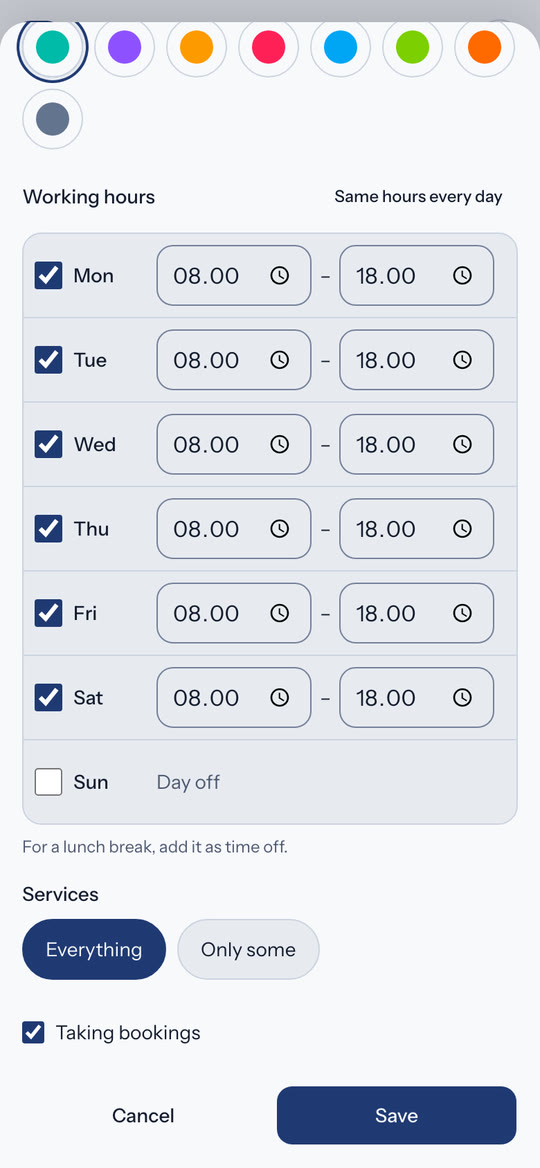
Working hours: Monday to Saturday, 08:00 to 18:00, Sunday off Tap Save. New bookings follow these hours straight away. Bookings you already have stay where they are.
Take a booking
Tap Calendar at the bottom of the screen, then Book.
Opening the calendar and tapping Book Under Customer, type a few letters of their name or phone number and tap them. Someone new? Tap New customer, or the Add … as a new customer button that appears as you type. Someone who walked in and won't leave details? Tap Walk-in, no details.
Tap the service they want. You can tap more than one, and Bizic adds up the time and the price.
Finding Mary, then choosing Wash and set Under With, leave Anyone free or tap a person. Then, under When, tap a day and a start time. Only free times are shown, and Bizic tells you when it will end.
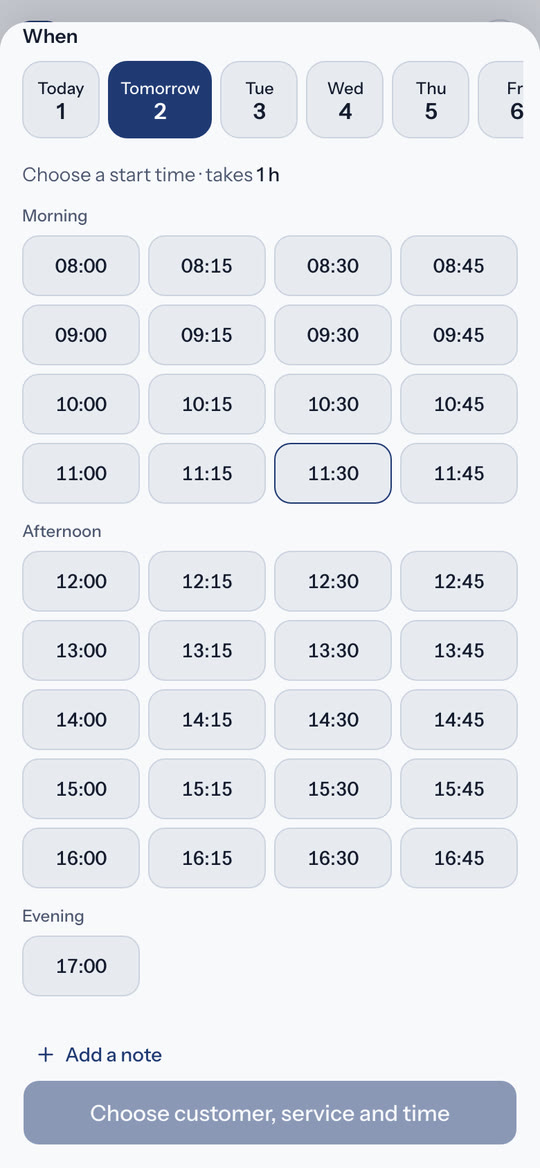
Free start times for the day, by morning and afternoon The big button now says the day, time and length, like Book · Mon 2 Nov 10:00 · 1 h. Tap it.
Choosing Monday at 10:00 That's it: the booking is in the calendar. Tap Send confirmation on WhatsApp so your customer has it too, then Done.
Booked, with Send confirmation on WhatsApp
Last change, 1 November 2026: Fresh pictures; money now reads XAF.
Still stuck?
Tell us what you were trying to do. A real person reads every message.