
Send a price quote
When the price depends on the job, list the work and anything extra, send it on WhatsApp as a picture, then book it at that price when the customer says yes.
When to use one
A wedding hairdo with travel, a bulk sewing order, a job that needs materials: anything where you'd normally say "let me work out the price". The quote has a number, your logo and a total, so it looks professional on the customer's phone.
Make the quote
Open More and tap Price quotes.
Opening Price quotes Tap New price quote.
Type the customer's name. If they're already a customer, tap their name and Bizic fills in their number. If not, tap Add "…" as a new customer and type their WhatsApp number.
Add the work, two ways: - From your menu: your services with their prices. Tap one and it's added at your usual price. - Something else: a blank line for materials, transport or anything that's not on your menu. Type what it is and the price. Change How many or Price each on any line. The total at the bottom adds up as you go.
Filling in a quote: a customer, a service and hair products Want to tell the customer something, like how the deposit works? Tap Add a note. The price holds for two weeks; change the date there if you need to.
Tap Save price quote.
Saving the quote
Send it
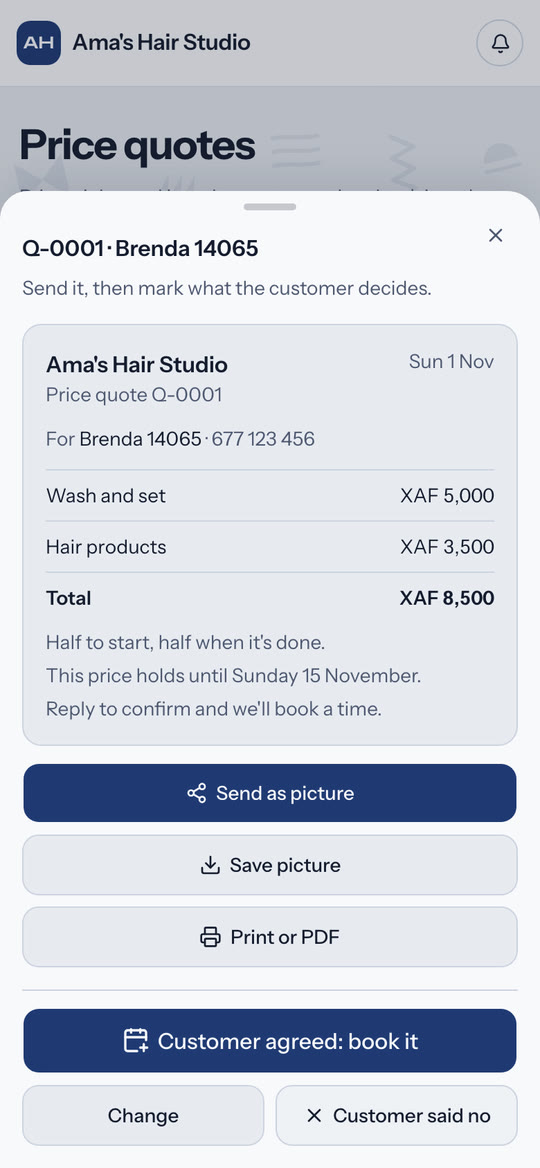
The quote opens as the customer will see it. Tap Send as picture to send it on WhatsApp, or Print or PDF.
When the customer answers
They agree: open the quote and tap Customer agreed: book it. The booking opens with their name and the services filled in. Pick a time, and the booking keeps the quoted price.
They say no: tap Customer said no. You can Reopen it later.
They want changes: tap Change, fix it and save. Send it again.
Last change, 1 November 2026: First version, with the new two-button way to add the work.
Still stuck?
Tell us what you were trying to do. A real person reads every message.