Find your way around Bizic
A quick tour of the screen. Where Home, the menu, your shops and your notifications are, and what each part is for.
Home: your day at a glance
Home is the first thing you see. It answers one question: what needs you today?
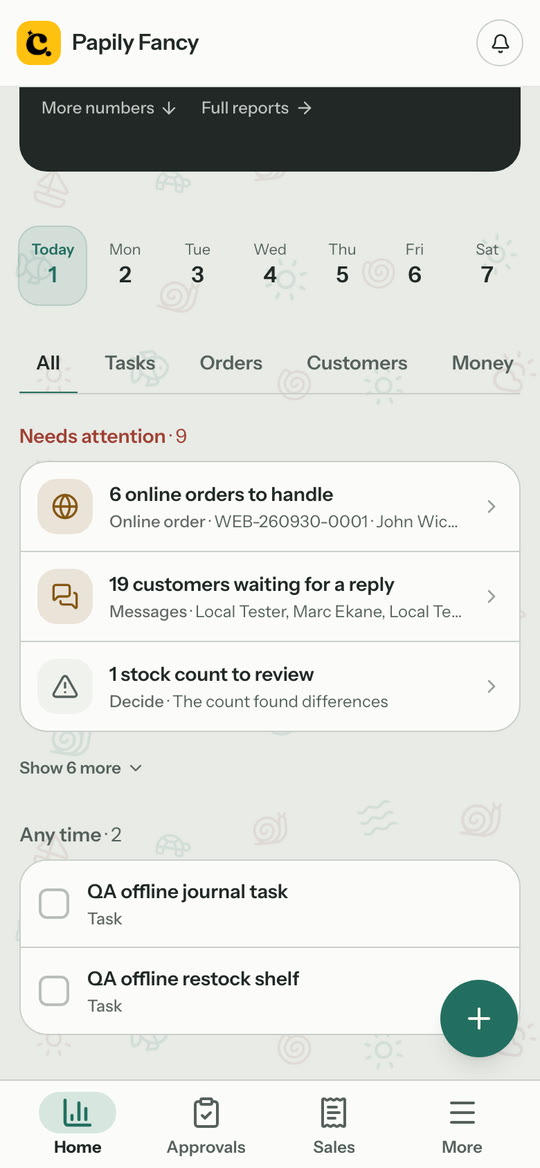
The dark card at the top shows today's sales, the last seven days, cash in the drawers, what customers owe you and what you owe. Tap More numbers for the rest, or Full reports for the detail.
The row of days lets you look at another day. Today is picked for you.
All, Tasks, Orders, Customers, Money narrow down the list under them.
Needs attention lists what's waiting: online orders, customers who need a reply, stock counts to check. Tap a row to deal with it.
The round + button adds a new task for you or your team.
The bar at the bottom
The four buttons along the bottom are the places you use most, so they depend on your business and your role. A shop run by one person sees Home, Sell, Products and More. A shop owner with a team sees Home, Approvals, Sales and More. A salon sees Home, Calendar, Customers and More. More always opens everything else.
The menu
Tap More to open the menu. It shows only what your business uses and what your role allows, so a cashier sees a shorter menu than the owner.
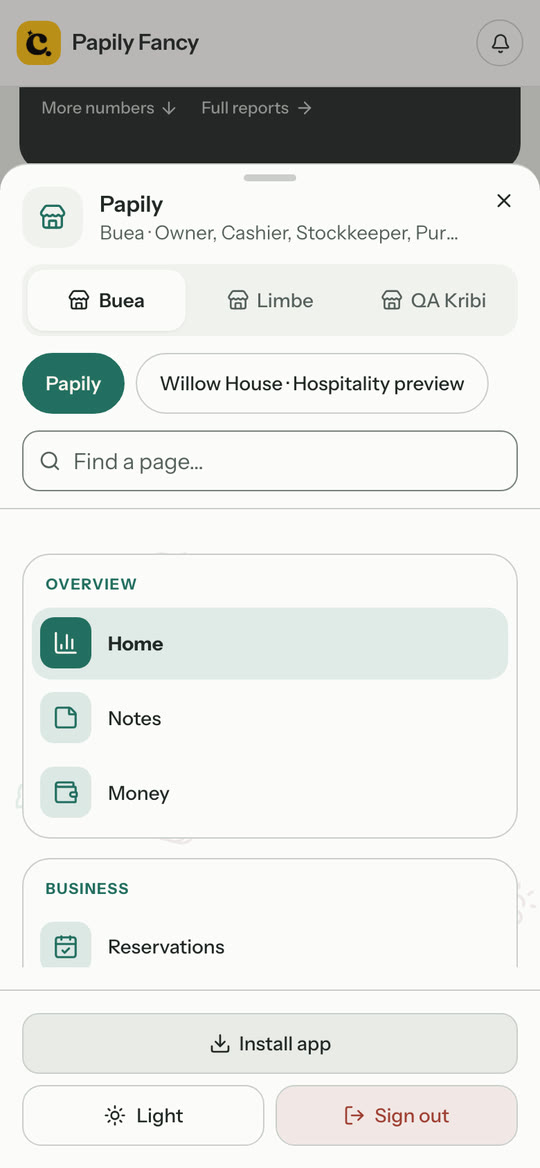
At the top: your business's name, the shop you're working in, and your roles.
Your shops: if you have more than one, tap a shop's name (like Buea or Limbe) to switch to it. Sales, stock and the drawer follow the shop you pick.
Your businesses: if you belong to more than one business, they show as pills. Tap one to switch.
The pages, grouped by job: Overview (Home, Notes, Money), Sales & customers (Sell, Sales, Orders, Customers, Messages), Stock & purchasing (Products, Purchases), Tasks & reviews (Approvals, Guides), Promotions & vouchers, and Setup (Import, Team, Settings).
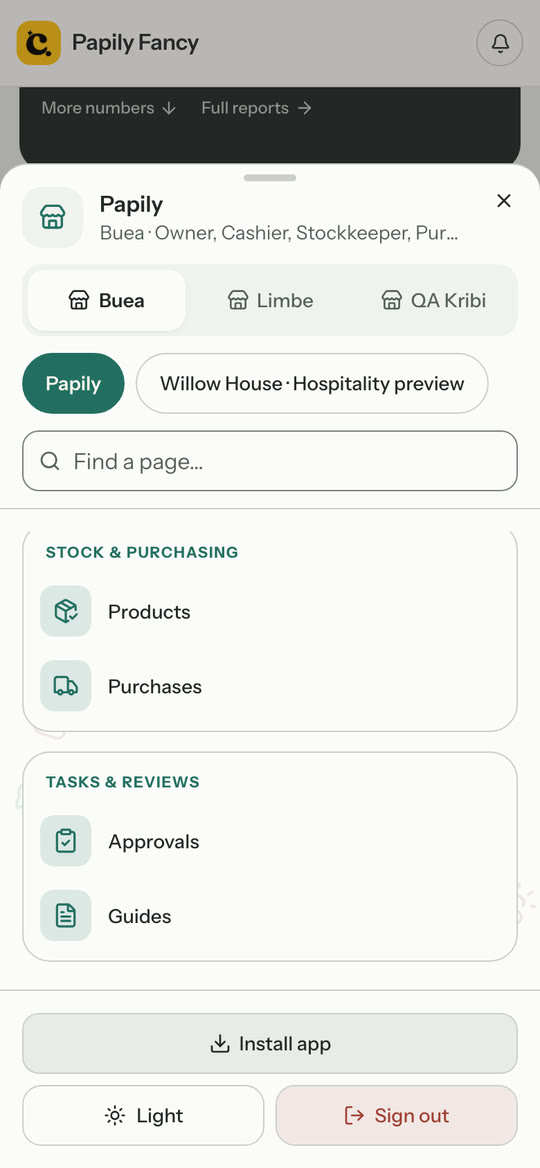
At the bottom: Install app puts Bizic on your home screen, Light or Dark changes the look, and Sign out.
Find a page fast
Open More and start typing a page's name in Find a page….
Tap the page when it shows up.
Typing "prod" and opening Products
Notifications
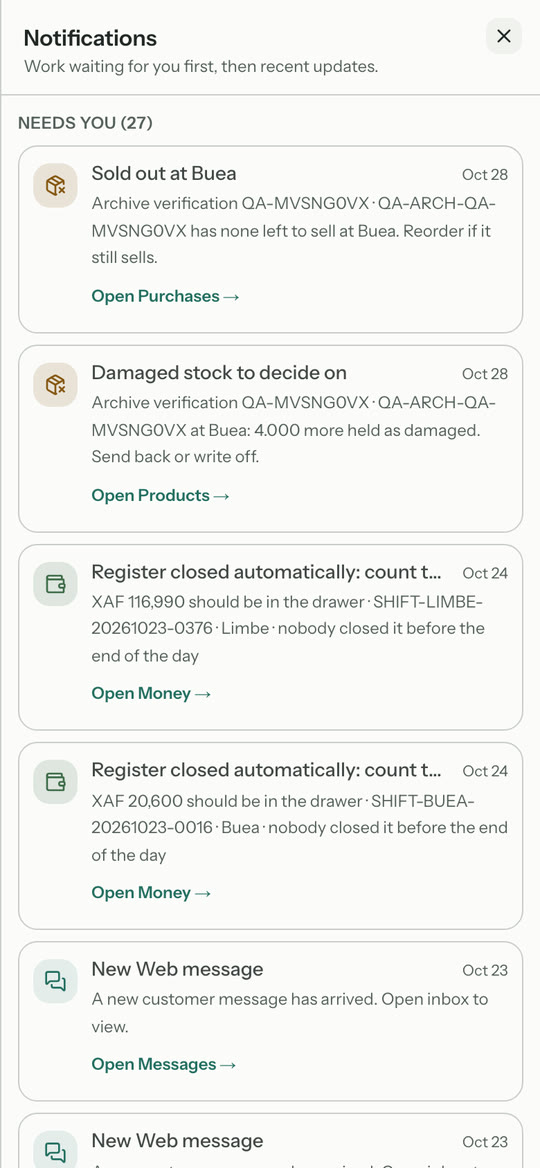
The bell at the top right shows how many things are waiting for you. Tap it to see them: work that needs you comes first, then recent updates. Each one has a link straight to the right page, like Open Purchases for something that's sold out.
Last change, 1 November 2026: Fresh pictures; money now reads XAF.
Still stuck?
Tell us what you were trying to do. A real person reads every message.