
Make your first sale
Ring up a sale at the till, take cash, give the right change and hand over a receipt. Once your products are in, it takes about ten seconds.
Before you start
You need at least one product in Bizic. No products yet? Bring them all in from a spreadsheet first. It's quicker than typing them one by one.
Ring it up
Open More, then tap Sell. This is your till.
Opening the till from the More menu The first time each day, the till says Start of day: the register is not open yet. Tap Open today's register, count the cash in the drawer, check the number, and tap Open the drawer. Bizic fills in last night's count for you, so most days it's one tap. If the drawer has a different amount, type it and say where the difference went (for example Owner took it), then tap Record and open.
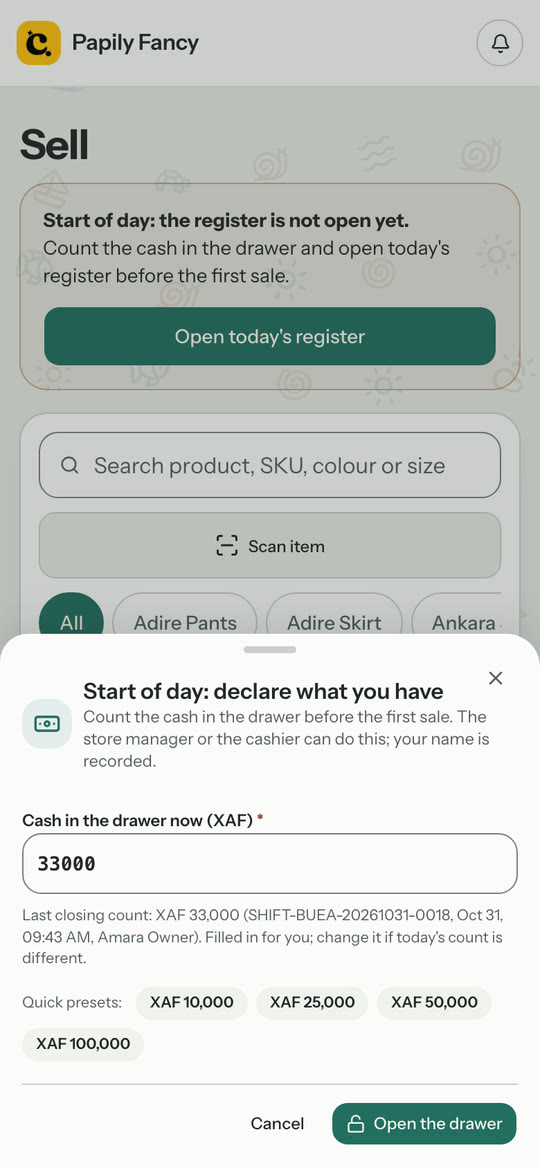
Start of day: declare the cash in the drawer Tap Add next to each thing the customer is buying. Tap it again for two of the same. Can't see the product? Type a few letters of its name, colour or size in the search box, or tap Scan item and point the camera at its label.
Tapping Add on two products, then Review sale Tap the green bar at the bottom to Review sale. Check the items, change a quantity with − and +, then tap Continue to payment.
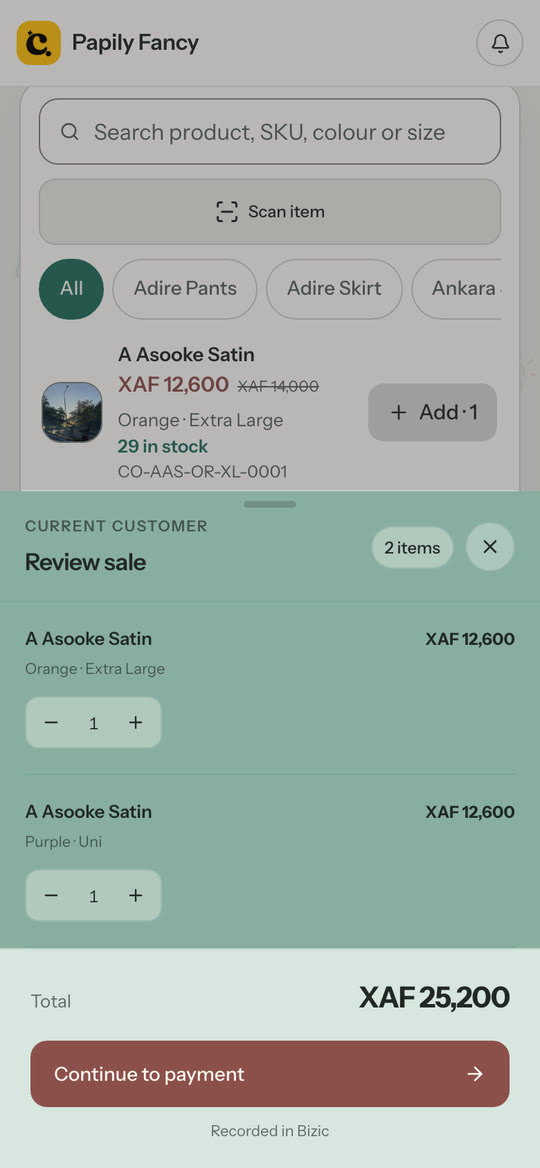
Review sale: the items and the total
Take the money
Choose how the customer is paying: Cash, or Scan to pay for MoMo and Orange Money.
For cash, type what the customer gave you in Cash received. Bizic works out the change for you. Taking the exact amount? Tap Use exact amount.
Typing 30,000 received; Bizic shows 4,800 change Tap Complete sale. That's it: the receipt is saved, the stock goes down and the money shows in today's total, all at once.
Completing the sale and seeing the receipt Tap Send to share the receipt with the customer, for example on WhatsApp, or Print if you have a receipt printer. Then tap Done, and you're ready for the next customer.
A sale from an earlier day
Forgot to ring something up, or sold while Bizic wasn't open? Record it on the day it happened, so the reports, the stock and the money all match.
On Sell, tap Record a sale for an earlier day.
Pick the Day it was sold and tap Use this day. A blue box says which day you're recording for.
Add the products and take the payment as usual, then Complete sale.
Tap Back to today when you're done.
If you're the owner or an administrator, it's recorded straight away. Anyone else's goes to Approvals first: an owner or administrator approves it (then it's recorded, in your name) or declines it with a reason, and you get a notification either way.
Once recorded, the sale counts on that day, the stock goes down, and its receipt number carries that day. It's marked added later in Sales history, with who added it, and it's listed in Money in and out with what was sold. Today's drawer doesn't change: the money was taken that day.
Last change, 18 November 2026: New section: record a sale you forgot, on the day it happened (owners and administrators straight away, others after approval).
Still stuck?
Tell us what you were trying to do. A real person reads every message.